

Prerequisites
First, make sure that your organization has an active Slack integration.Set up Slack for your organization
Connect Slack and choose the notification channel.
Manage findings from Slack
When Hacktron’s Slack app sends a finding in your configured channel, you can leave a triage comment and mark the finding as a false positive or accepted risk, or mark the finding as valid. Open the finding card and click on Mark Valid or Triage Comment.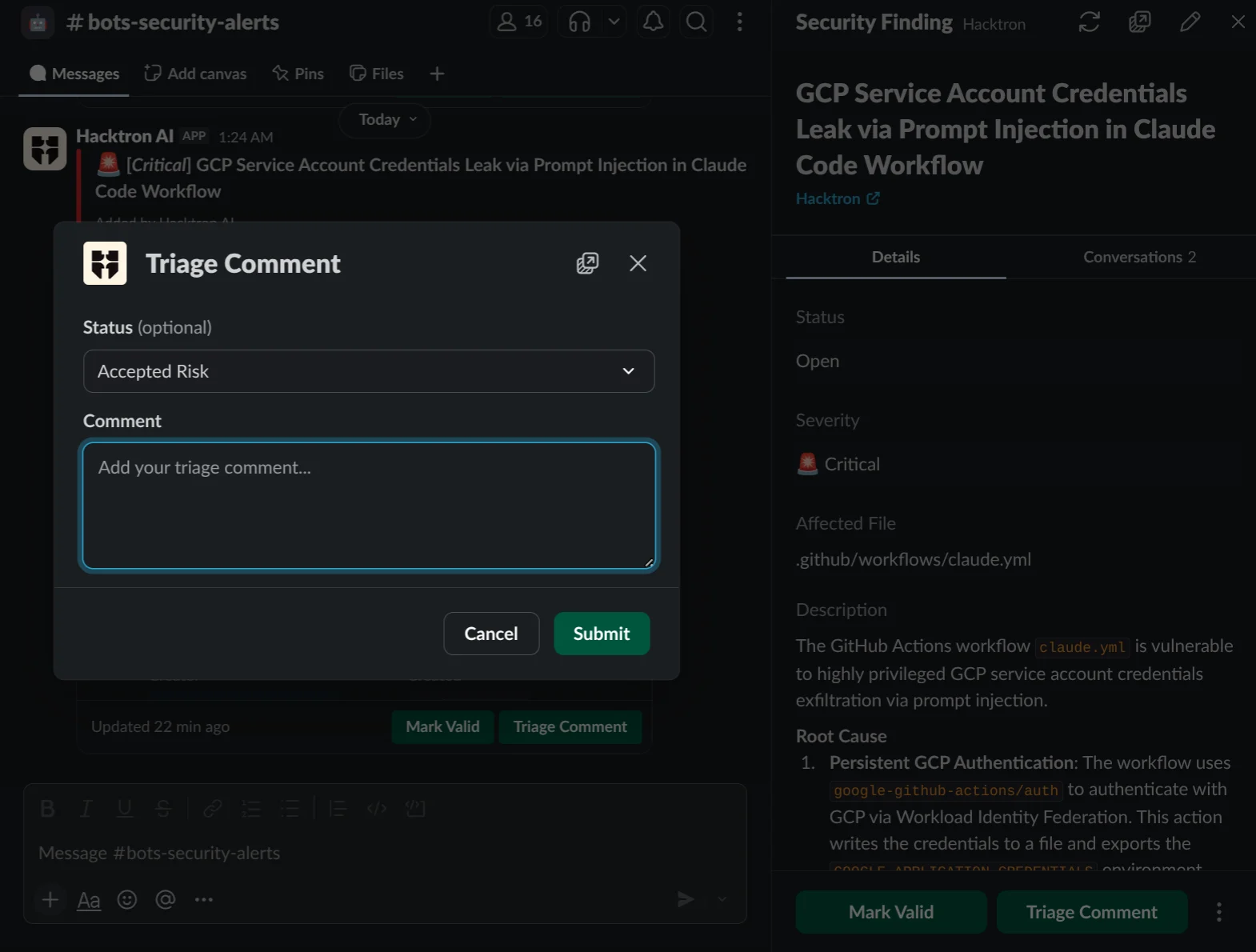
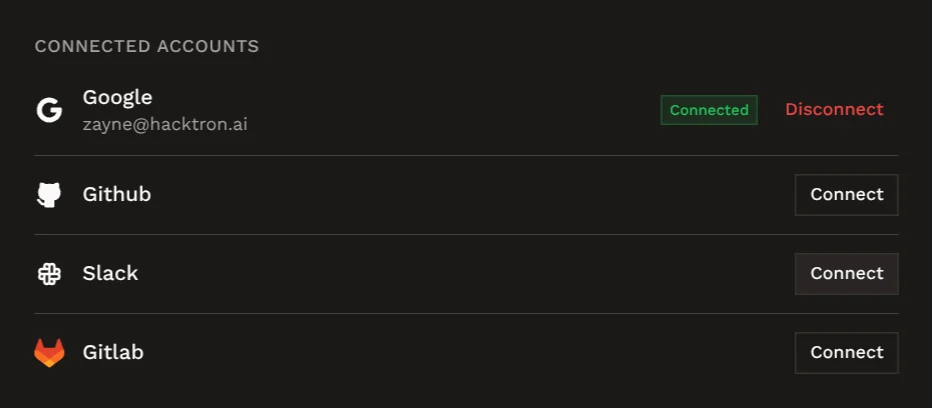
Link your Slack identity
To perform actions on findings directly from Slack and for Hacktron to tag you on Slack, you need to link your Slack identity to your Hacktron account so that Hacktron can recognize you on Slack.
You can now provide feedback and act on findings directly from Slack.

Findings and feedback
Understand how feedback you give Hacktron improves future reviews.