

Prerequisites
You need to be a Hacktron organization admin to manage the Slack integration. You also need permission to authorize apps in the Slack workspace you want Hacktron to use.Configure Slack
Authorize Hacktron
Sign in to Slack if required, choose the workspace, and approve the
requested access.
Hacktron uses this access to send security notifications and scan updates
to the Slack channel you configure.
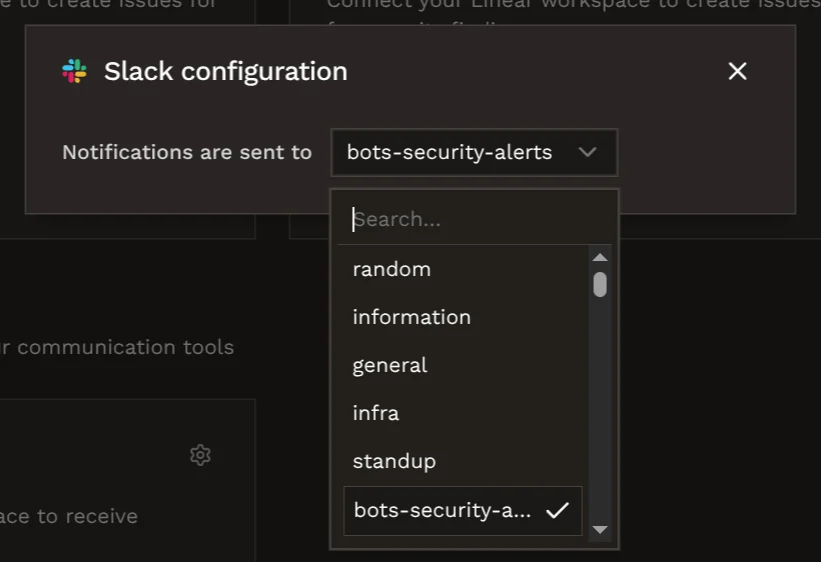
Updating the channel
Open the Slack settings panel again and choose a different channel. Hacktron removes the previous channel configuration and saves the new one.Disconnecting Slack
Open the Slack card in Integrations and choose Disconnect. Hacktron will stop sending notifications and alerts to Slack.Common checks
- If Slack does not connect, retry from Integrations so Hacktron can create a fresh OAuth state.
- If a channel is missing, confirm that the Slack workspace account used for OAuth can access that channel.
- If notifications are not appearing, confirm that the Slack integration is connected and a channel is selected.