

Prerequisites
You need to be a Hacktron organization admin to manage the Jira integration. You also need permission to authorize apps in the Jira workspace you want Hacktron to use.Configure Jira
Sign in to Atlassian (if required)
If Atlassian prompts you to sign in, enter your Atlassian login credentials as you normally would.
Authorize Hacktron
Hacktron will request access to view and create Jira tickets.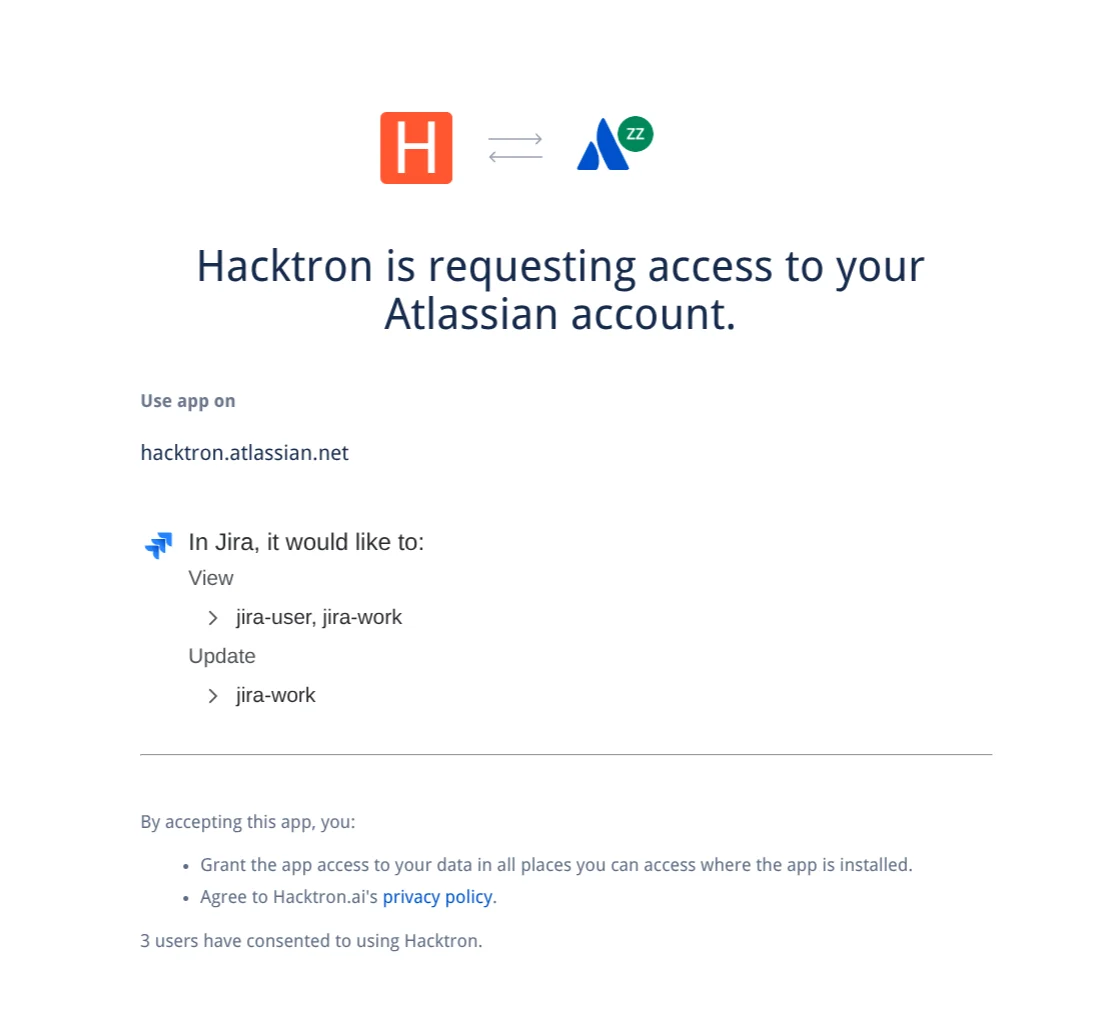
Hacktron requests the following permissions:
- Read access to
jira-user - Read and write access to
jira-work
Return to Hacktron
After authorization, Hacktron redirects you back to Integrations and
opens the Jira configuration panel.
Choose auto-create behavior
Turn on Automatically create tickets to have Hacktron create Jira tickets for every security finding.
Choose ticket defaults
Select the default Jira project and issue type. Hacktron will use these settings to create Jira tickets for security findings.You can also optionally apply a default label (e.g. “security”) and a default assignee from your team.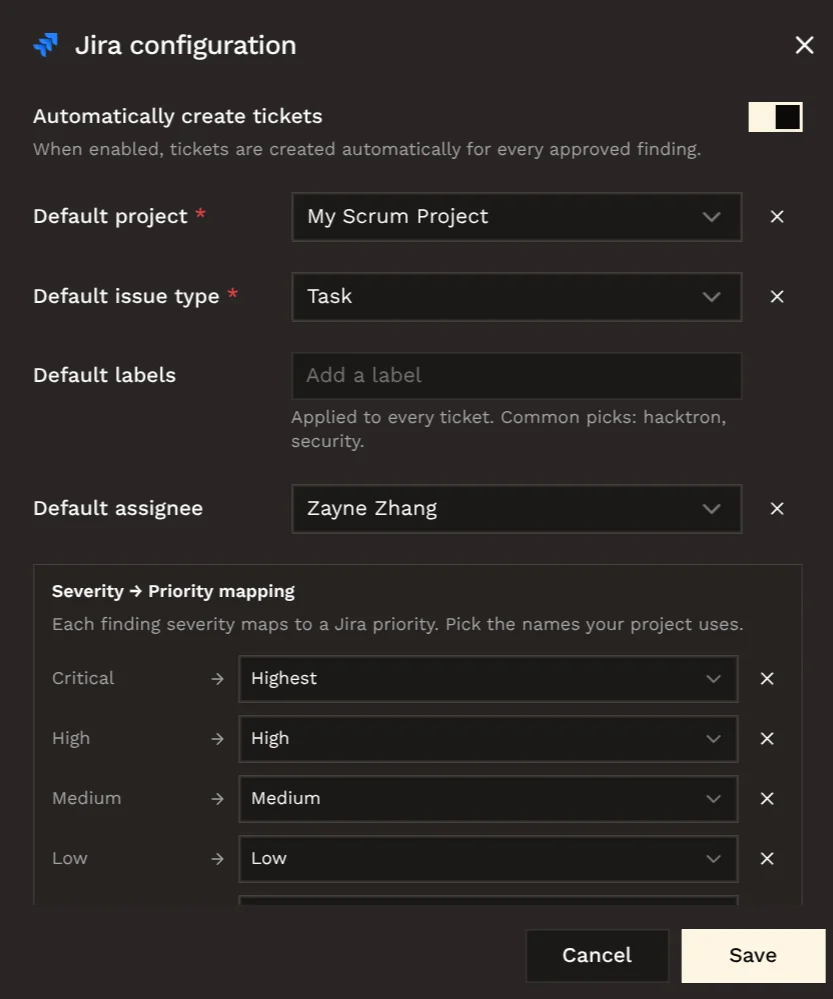
This is required if you enable auto-create. You can change these settings later.
Using Jira tickets
After Jira is connected, open an approved finding and choose Create on Jira to create a Jira issue manually. If the finding already has a Jira issue, Hacktron shows View on Jira instead.Common checks
- If projects or issue types are missing, confirm that the Atlassian account used for OAuth can access them.
- If auto-create cannot be saved, make sure both a default project and default issue type are selected.
- If a ticket already exists for a finding, use View on Jira instead of creating another ticket.